




-
Interface
Getting started
First, lets cover the dashboard interface. To get to the interface, you’re going to have to download the game. If you’re reading this planning on playing, I can only assume you have access currently.
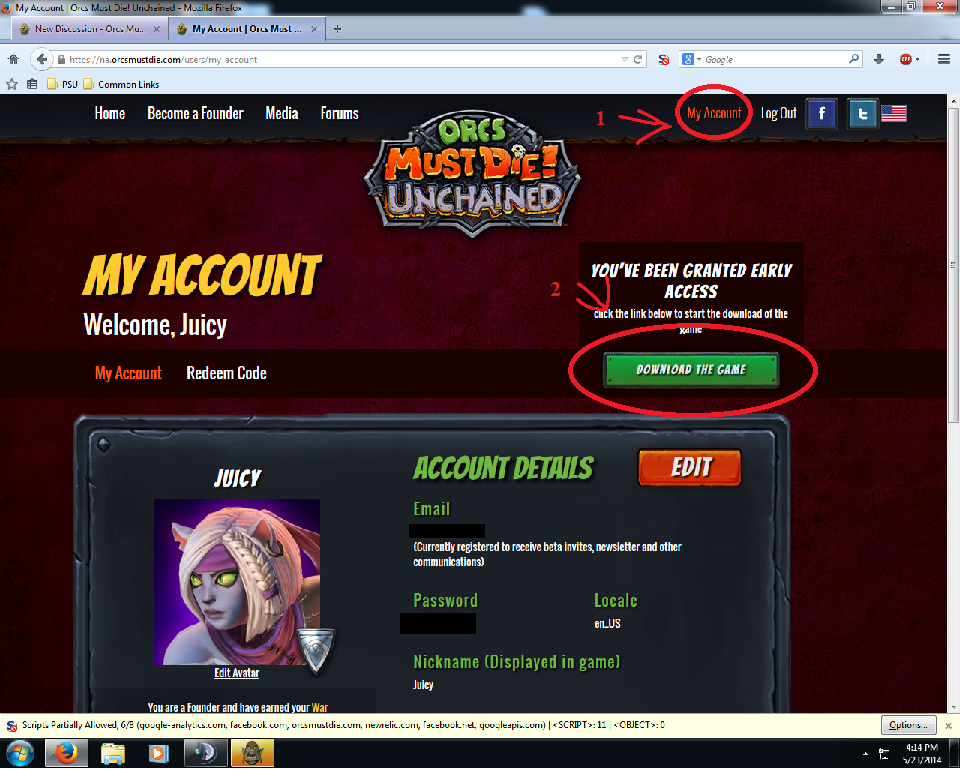
1.) Click on my account here, it will take you to the page shown.
2.) Click on download game – simple stuff. (If this isn’t here for you, then either you didn’t redeem your key (check your email!), or you are bugged, and should leave a forums post about it.)
Now, once your game is downloaded and installed, you’re going to boot it up. It has a patching interface, which once done patching, will load to the login screen. The login screen will also patch, once it is done you will see a login screen. Log in, and you’ll see the dashboard interface. There is some simple information on the front, specifically our normal playtimes, patch notes, and teamspeak info, as well as some basic information about the game under “How to play”.
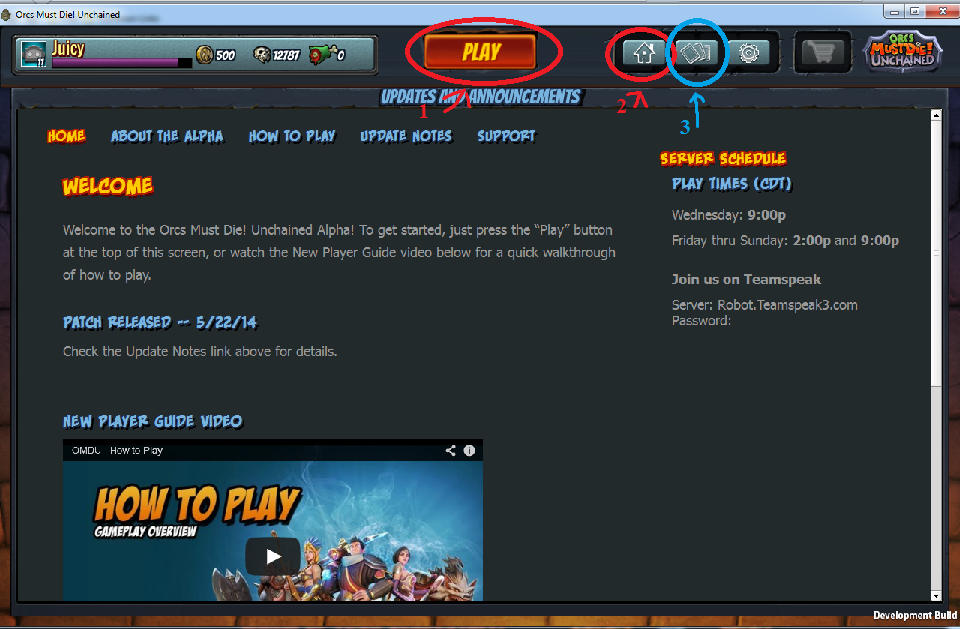
1.) This is the play button, it’ll take you to games.
2.) This takes you to the homepage, where you are currently.
3.) This takes you to deck builder. I’ll cover that later.
Joining / Creating games
If you go to play, you’ll see where you pick games. Ranked match and cooperative are currently disabled.
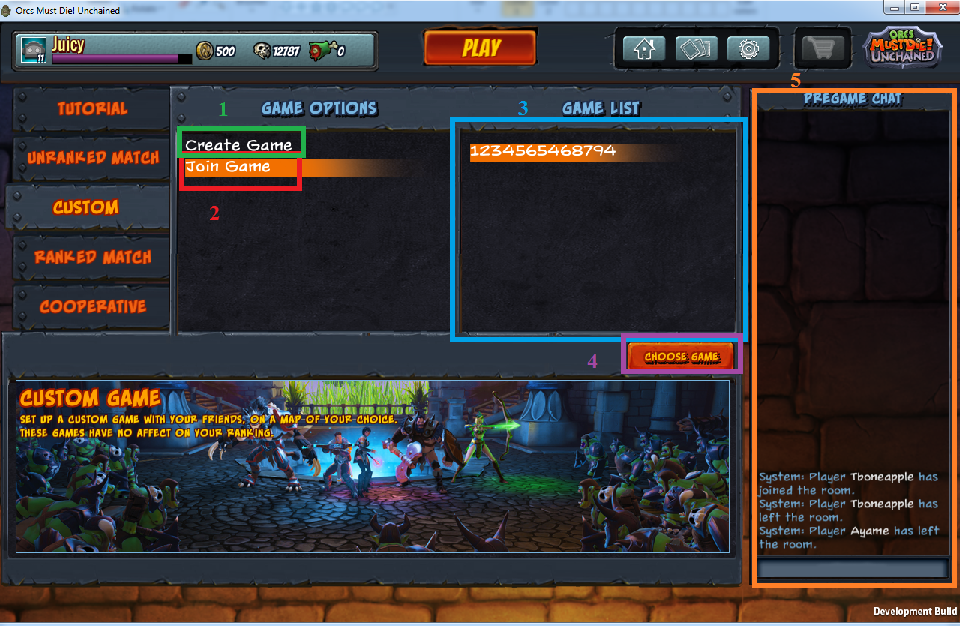
1.) Create a game. If you want to make a room, you’ll click on this, type in a name, and tell it to launch.2.) Joining a game. All custom rooms that are not full are listed here.
3.) This is where custom games are found. You will have to click on the game you want directly, currently the only information shown is the match name.
4.) Choosing your game, once you find the custom game you want, click on this.
5.) This is pregame chat it will serve as a chat when everyone is not in a game lobby. It will tell you when someone enters (looking at matches) and leaves (closes game, joins a match, opens deckbuilder, etc.). Anyone else that is waiting to join a game will see this chat.
**Tips and Tricks** Custom games don’t refresh on their own, so if you want to see if a new room is up you will need to click on something (create game works), then back onto join game.
This is the screen you will get once you join or make a custom lobby.
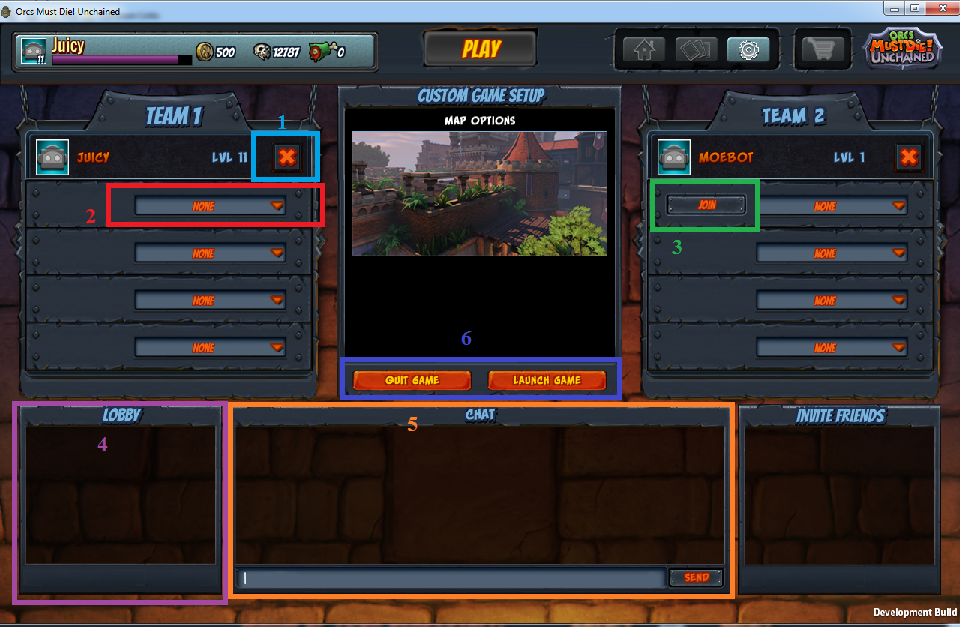
1.) This X will make you quit a team and go into the lobby area (4).2.) This dropdown box is for bots only. If you are the custom lobby leader, you can place a bot on either team by using this dropdown box. Currently, Moebot is Warmage, Lizzybot is Sorceress, and Tanithbot is Ivy.
3.) The join button. Fairly self explanatory, if you are on a team it only appears on the other team. If you are in lobby, a button will appear for one or both teams, depending if they are full or not.
4.) This shows players that have yet to join a team.
5.) This is pregame chat. Both teams can see this, it’s a good time to talk to the other team before the game starts.
6.) The Quit and Launch game buttons. Quit returns you to the custom lobby browser. Launch is an option only usable by the custom lobby leader, and when pressed the game starts.
Selecting your hero
This is the screen you will see after the leader presses launch.

1.) This is your information bar, there is one for every player. The icon is your hero currently selected, followed by your name, followed by a checkmark or checkmark gap. If a bright checkmark appears (as shown in 3), then that hero is locked in to that player, and they can not change.2.) Hero selection, pick which hero you want. Note that you can pick the same hero as an enemy, but not as a teammate. (Bots are excluded, you can play the same hero as a bot on your team). Random will give you a hero that one of your teammates is not playing, picked at random.
3.) Note that you can tell which heroes the enemy team is playing.
4.) Choosing your deck. I will get into this later, but this is where you choose which deck you want to use. The first 7 are standard at the moment, and you can make 5 in deckbuilder.
5.) This is team chat. Unlike pregame chat, only your teammates can read this. Good time to discuss strategies.
6.) The launch game button. It only works if the leader presses the button, and it only works after everyone has a checkmark beside their name.
7.) The lock hero button. After you pick a hero, you need to click on this button to make sure the check mark pops up beside your name.
Now your game is loading. Once you load in, you’ll be looking at a short time window before the match actually begins!
- June 2025
- January 2025
- October 2024
- July 2024
- October 2023
- April 2022
- November 2021
- July 2021
- June 2021
- July 2020
- April 2020
- October 2019
- August 2019
- March 2019
- January 2019
- August 2018
- April 2018
- March 2018
- February 2018
- January 2018
- December 2017
- November 2017
- August 2017
- July 2017
- June 2017
- May 2017
- April 2017
- March 2017
- February 2017
- January 2017
- December 2016
- November 2016
- October 2016
- September 2016
- August 2016
- July 2016
- June 2016
- May 2016
- April 2016
- March 2016
- February 2016
- January 2016
- December 2015
- November 2015
- October 2015
- September 2015
- August 2015
- July 2015
- June 2015
- May 2015
- April 2015
- March 2015
- February 2015
- January 2015
- December 2014
- November 2014
- October 2014
- September 2014
- August 2014
- July 2014
- June 2014
- May 2014
- April 2014
- March 2014
- February 2014
- January 2014
- December 2013
- November 2013
- October 2013
- September 2013
- August 2013
- July 2013
- June 2013
- April 2013
- March 2013
- February 2013
- January 2013
- December 2012
- November 2012
- October 2012
- September 2012
- August 2012
- July 2012
- June 2012
- May 2012
- April 2012
- March 2012
- February 2012
- January 2012


